Author: Manjunath

Manjunath is an IT enthusiast with experience in Cloud services platform and PowerShlell scripting. He blogs about public cloud platform and scripting techniques.

Powershell – Script to check the Azure VHD lease status

The common miss conception while working with Azure compute is to assume that no billing charges will be incurred once the Azure VM is deleted. This is true to certain extent. Because, once you delete the VM, the billing for compute hours will stop. But the billing continues for the VHD (which was previously associated with the VM) that is still available in the Azure storage account.

As the title of the post states – the idea behind this script is to get a list of “Lease status” of Azure VHDs from all the storage accounts under your subscription. This is particularly helpful to delete any unused VHDs. Thus saving a lot of money for your organization.

The complete script is uploaded in the Microsoft Script Center. Use the below link to download it.

Check the Lease status of VHDs


Powershell – Script to Monitor Azure VM Availabilty

The idea behind writing this script is to have an automated solution to monitor availability of any Azure VMs. The script fetches the current server status, saves it in an Azure Table. Each script execution is one poll. So the second time the script runs, it fetches the current server status of VMs and then compares it to the previous value. If there are any changes to the server status during polling, such server details will be written to a hash table. Finally the details of the servers can be sent to an email.

Since we are monitoring the VM status from “RUNNING” to “VM STOPPED”, this will eliminate the scenarios, where VMs are stopped manually or as per a scheduled shutdown automation script. In these cases the VM status changes from “RUNNING” to “VM DEALLOCATED”.

Feel free to customize the script to add logic if you want to monitor the status of De-allocated VMs as well.

This script uses SendGrid as an email server. Feel free to add your SMTP address if you have one.

This script is useful when you do not yet have a fully automated monitoring like Nagios/OMS. Maybe you have a couple of servers that you want to monitor and do not want to spend more money on a custom monitoring. Simply create a runbook using this script as a baseline and schedule it in the Azure Automation Account.

The script is uploaded to the Microsoft Script Center. Please download it using the below link:

Monitor Azure VM Availability

Azure -Data Protection in Azure

At any point of time, we will have data in three phases: Data in rest, Data in Transit and Data in Use. Data protection involves protecting the data in all the three phases.

Data in rest refers to the data saved in hardware media. Data in Transit refers to the data that is traveling via network, usually between Server and Client or between two Azure components. Data in Use refers to the data that is currently being used, usually by CPU/memory.

At the data center level, Microsoft deploys ISO-compliant safeguards.

Microsoft also uses a “Just-In-Time” access policy. This ensures that even Microsoft employees do not have complete access to all resources at all the time. This is specially helpful for auditing.

Azure stores data in two forms – Structured and non-structured. Azure storage is used to store the non-structured data in the form of Blobs, tables, queues and files. Azure SQL is a PaaS offering which is used to store structured data.

Data Protection

Azure Storage:

Azure Storage does not provide out-of-box encryption for Azure Storage. Instead you can bring your own encryption solutions.

At the application level, you can encrypt data by using the SDKs provided by on-premise Active Directory Rights Management Services (AD RMS) or Azure Rights Management Services (RMS).

At the platform level, you can use Azure StorSimple, which provides primary storage, archive and disaster recovery. When configuring StorSimple, you can specify a data-at-rest
encryption key for data encryption. StorSimple uses AES-256 with Cipher Block Chaining (CBC), which is the strongest commercially available encryption.

At the system level, you can use Windows features such as Encrypting File System (EFS), Bit-locker drive encryption etc.,

Azure provides an Import/Export service by which you can transmit your data to Azure by shipping physical data drives. Bit-locker is mandatory when you are using this service. While Importing, you have to enable Bit-locker before sending the data drives to Azure. And the bit-locker key is transmitted separately. While Exporting, you need to send drives to Azure and then encrypt the data before shipping the data back.

SQL Database:

We have two options, First one is the Azure SQL which is a PaaS offering. Because database instances are managed by Azure, we do not have to worry about database availability or low-level data protection. Second one is your own SQL Server instance on top of Azure VM.

SQL Server Transparent Data Encryption (TDE) provides protection for at-rest data by performing real-time I/O encryption and decryption of the data and log files. For a more granular encryption, you can use SQL Server Column-Level Encryption (CLE). CLE ensures that data remains encrypted until it is used.

Implementing effective Access control policies:

Access control ensures that only authorized users can access data. Azure employs multiple levels of access controls over customer data.

Azure Storage:

First, customer data is segmented by Azure subscriptions so that data from one customer cannot be intentionally or accidentally accessed by another customer. Within a subscription, Azure Storage provides container-level and Blob-level access controls for Blob storage, and table-level and row-level access controls for Table storage. Each Azure Storage account has two associated keys: a primary key and a secondary key. Having two keys means that you can perform planned and unplanned (such as when the primary key is compromised) key rotations as needed.

In addition, Azure Storage also supports URL-based access with Shared Access Signatures (SAS). Using SAS, you can grant direct access to storage entities (containers, Blobs, queues, tables, or table rows) with a specified set of permissions during a specified time frame. For example, when you share a file, instead of sharing your storage account key, you can create an SAS signature with read privilege that allows users to read the specific file within a specified span of time. You don’t need to revoke the access, because the SAS address automatically becomes invalid upon expiration of the predefined time frame.

Azure SQL Database:

Azure SQL Database uses an access security model that is very similar to on-premises SQL Server. Because Azure SQL Database instances are not domain-joined, only standard SQL authentication by user ID and password is supported. For SQL Server instances running on Azure Virtual Machines, they can also authenticate by using Kerberos tokens if the virtual machines (VMs) are domain-joined.

Reference Book: 70-534 Architecting Microsoft Azure Solutions

Azure – Configure a Point-To-Site Connection to a Vnet using Azure Portal

A Point-To-Site(P2S) configuration lets you create a secure connection from an individual client computer to a virtual network. A P2S connection is useful when you want to connect to your VNET from a remote location, such as from home or a conference, or when you only have few clients that need to connect to virtual network.

P2S connections do not require a VPN device or a public-facing IP address to work. A VPN connection is established by starting the connection from client computer.

Below are the operating systems that we can use with Point-To-Site:

  • Windows 7 (32-bit and 64-bit)
  • Windows Server 2008 R2 (64-bit only)

  • Windows 8 (32-bit and 64-bit)

  • Windows 8.1 (32-bit and 64-bit)

  • Windows Server 2012 (64-bit only)

  • Windows Server 2012 R2 (64-bit only)

  • Windows 10

This blog walks you through creating a Vnet with Point-To-Site connection in the Resource Manager deployment model using the Azure Portal.

This is a 9 step process:

PART 1 – Create Resource Group

PART 2 – Create Virtual Network

PART 3 – Create Virtual Network Gateway

PART 4 – Generate Certificates

PART 5 – Add The Client Address Pool

PART 6 – Upload the Root certificate .cer file

PART 7 – Download and install the VPN client configuration package

PART 8 – Connect To Azure

PART 9 – Verify your connection

Below are the values that we will use to configure the Point-To-Site connection:

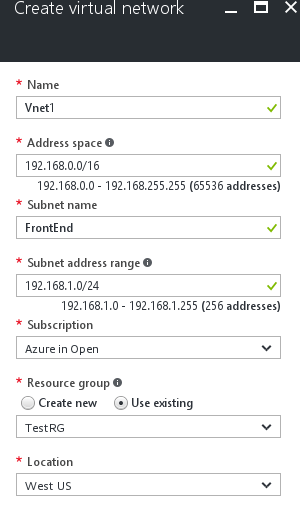
  • Name: VNet1

  • Address space: 192.168.0.0/16
    For this example, we use only one address space. You can have more than one address space for your VNet.

  • Subnet name: FrontEnd

  • Subnet address range: 192.168.1.0/24

  • Subscription: If you have more than one subscription, verify that you are using the correct one.

  • Resource Group: TestRG

  • Location: East US

  • GatewaySubnet: 192.168.200.0/24

  • Virtual network gateway name: VNet1GW

  • Gateway type: VPN

  • VPN type: Route-based

  • Public IP address: VNet1GWpip

  • Connection type: Point-to-site

  • Client address pool: 172.16.201.0/24
    VPN clients that connect to the VNet using this Point-to-Site connection receive an IP address from the client address pool.

PART 1 – Create Resource Group

Click on “Resource Groups” from the side pane >> Click on “ADD” >> Fill in the details >> Click on “CREATE”

1

PART 2 – Create Virtual Network

  1. Click on “New” >> Search for “Virtual Network” >> Click on “Virtual Network” from the results.

    search_vn

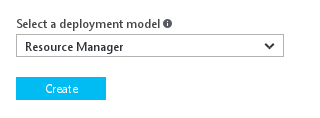
  2. Select “Resource Manager” in the drop down >> Click on “Create”
    3

  3. Fill in the details as below.

    4

Name: Name of your Virtual Network.

Address Space: Address Space of your Virtual Network.

Subnet Name: Name of the default subnet (You can add more subnets later)

Subnet Address Range: The range of the subnet.

Subscription: If you have multiple subscriptions, you can select them from drop down list.

Resource Group: Select the Resource Group that you just created “TestRG”

Location: Select the location for your VNet. The location determines where the resources that you deploy to this VNet will reside.

Add Additional Address Space (Optional)

Click on the Vnet >> under “Settings” click on “Address Space” >> Add the address space that you want to include >> Click on “Save”

5

Add Additional Subnets (Optional)

6

Create A Gateway Subnet

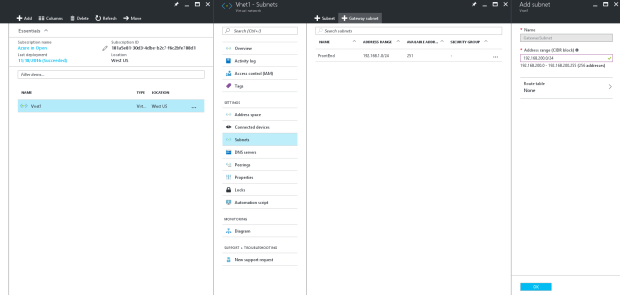
Before connecting your virtual network to gateway, we need to first create the gateway subnet for the virtual network to which you want to connect.

  1. Navigate to the virtual network to which you want to connect the gateway. “Vnet1” in our case.

  2. Select the Vnet “Vnet1” >> Under the “Settings” >> select “Subnets” >> In the next pane, click on “+Gateway Subnet” >>
    7

  3. The Name for your subnet will be automatically filled with the value “GatewaySubnet”. This value is required in order for the Azure to recognize the subnet as Gateway Subnet. Fill in the address range that matches your configuration.

    GatewaySubnet: 192.168.200.0/24 (In our case)

  4. Click “OK” to create the Gateway Subnet.

Specify A DNS Server (Optional)

You can either choose the Azure-DNS (default one) or your own custom DNS for the name resolution.

  1. Click the Virtual Network “Vnet1” >> Under the “Settings” >> Click on “DNS Server”

  2. You can see that we have two options, Select “Custom” if you have your own DNS server.

    But we will go ahead with the default one for our set-up

    8

PART 3 – Create Virtual Network Gateway

Point-To-Site connection require the following settings:

  • Gateway Type: VPN

  • VPN Type: Route-Based

  1. In the Azure portal >> Click on “+” (New) >> Search for “Virtual Network Gateway” from the market place >> Select the “Virtual Network Gateway” from the list. >> Click on “Create” Button.
    9

  2. Provide the Virtual Gateway Name. VNet1GW in our case.

    10

    Name: Virtual Gateway name (Vnet1GW)

    Gateway Type: VPN

    VPN Type: Route-Based

    SKU: Standard

    Virtual Network: The Vnet to which this Gateway has to be attached,

    Public IP Address: Public IP to the Virtual Gateway. This will be dynamically assigned.

    Subscription: Select the correct subscription.

    Resource Group: Select the correct resource group. (TestRG in our case)

    Location: Adjust the location, where your Vnet is located.

  3. Connect this Virtual Gateway to our Virtual Network.

    11

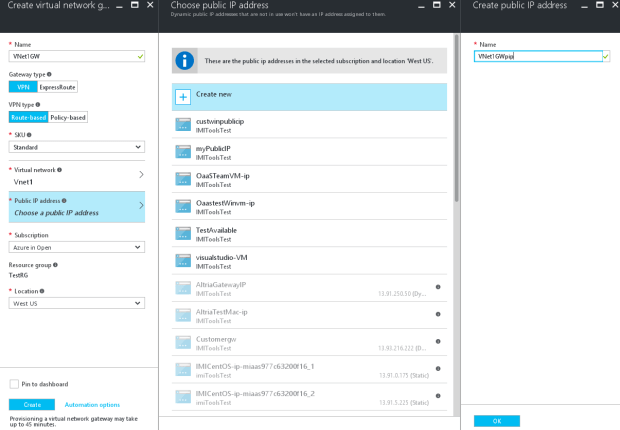
  4. Associate a public IP address to the Virtual Gateway

    Click on the “Public IP Address” >> Click on “Create New” >> Provide a name for your Public IP. >> Click on “OK”
    12

  5. The settings will be validated. Creating a gateway can take upto 45 minutes. You may have to refresh the portal to see the complete status.

  6. After the gateway has been created, you can view the IP assigned to it by looking at the virtual network in the portal. The gateway will appear as a connected device.

    13.png

PART 4 – Generate Certificates

Certificates are used by Azure to authenticate VPN clients for Point-To-Site VPNs. You export the public certificate data (not the private key) as a Base-64 encoded X.509.cer file from either a root certificate generated by an enterprise certificate solution, or a self signed root certificate. You then import the public certificate data from the root certificate to Azure. Additionally, you need to generate a client certificate from the root certificate for clients. Each client that wants to connect to the virtual network using a P2S connection must have a client certificate installed that was generated from the root certificate.

Create a self-signed certificate

  1. Install the Windows Software Development Kit

    Windows 10 → https://developer.microsoft.com/en-us/windows/downloads/windows-10-sdk

    Windows 7 → https://www.microsoft.com/en-in/download/details.aspx?id=8279 (.NET 4)

    https://www.microsoft.com/en-in/download/details.aspx?id=3138 → (.NET 3.5 SP1)

  2. After installation, you can find the makecert.exe utility under the path: C:\Program Files (x86)\Windows Kits\10\bin\x64

  3. Create and install a certificate in the Personal certificate store on your computer. The following example creates a corresponding .cer file that you upload to Azure when configuring P2S. Run the following command, as administrator. Replace ARMP2SRootCert and ARMP2SRootCert.cer with the name that you want to use for the certificate.
makecert -sky exchange -r -n "CN=ARMP2SRootCert" -pe -a sha1 -len 2048 -ss My "ARMP2SRootCert.cer"

The certificate will be located in your certificates – Current User\Personal\Certificates.

I am using Windows 7, so the “makecert.exe” is stored in → C:\Program Files\Microsoft SDKs\Windows\v7.0\Bin

Command:

cd ‘C:\Program Files\Microsoft SDKs\Windows\v7.0\Bin’

PS C:\Program Files\Microsoft SDKs\Windows\v7.0\Bin> .\makecert.exe -sky exchange -r -n “CN=P2SRootCert” -pe -a sha1 -len 2048 -ss My “P2SRootCert.cer”

Open “Run” and enter certmgr.msc, this will open the Certificate Manager Tool, If you can browse into the “Personal” >> “Certificates”, you can see your self-signed certificate.
14

Obtain the Public Key

As part of the VPN Gateway configuration for Point-To-Site connections, the public key for the root certificate is uploaded to Azure.

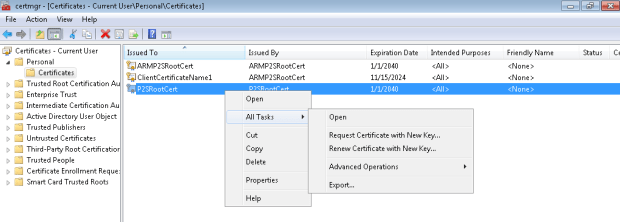
  1. To obtain the .cer file from the certificate, open certmgr.msc. Right click the self-signed root certificate, click “all tasks”, and then click export. This opens the Certificate Export Wizard.
    o1.png
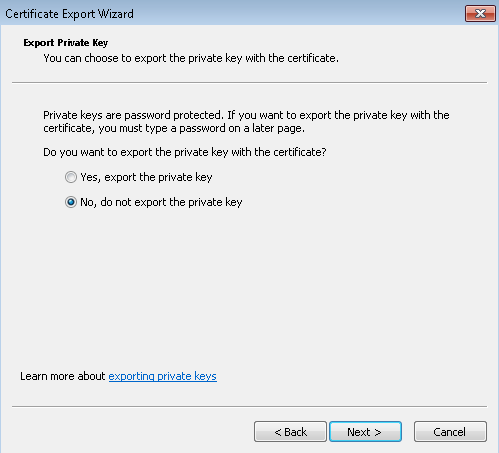
  2. In the Wizard, click Next, select No, do not export the private key,  and then click Next.
    o2
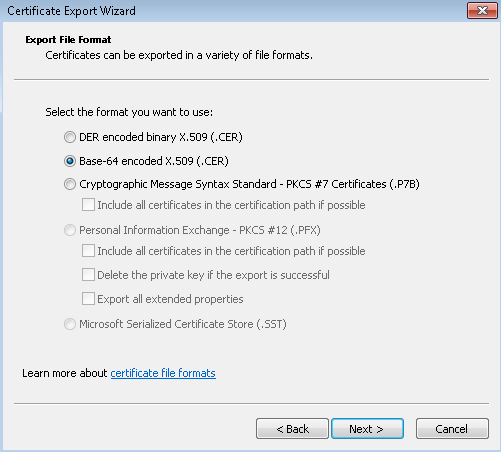
  3. On the Export File Format page, select Base-64 encoded X.509 (.CER). Then, click Next.
    o3.png

  4. On the File to Export, Browse to the location to which you want to export the certificate. For File name, name the certificate file. Then click Next.
    o4
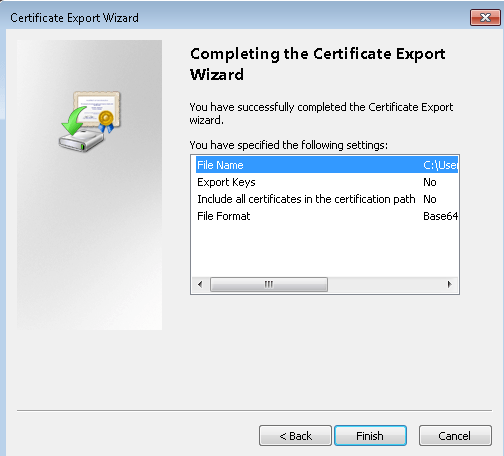
  5. Click Finish to export the certificate.
    o5

You can see that the certificate file is now exported to the destination folder.

o6

Create and install client certificates

Part A – Generate a client certificate from a self-signed certificate

The following steps walk you through one way to generate a client certificate from a self-signed certificate. You may generate multiple client certificates from the same certificate. Each client certificate can then be exported and installed on the client computer.

1. On the same computer that you used to create the self signed certificate, open Powershell / Command prompt as administrator.

2. In this example, “ARMP2SRootCert” refers to the self-signed certificate that you generated.

  • Change “ARMP2SRootCert” to the name of the self-signed root that you are generating the client certificate from.
  • Change ClientCertificateName to the name you want to generate a client certificate to be.

Modify and run the sample to generate a client certificate. If you run the following example without modifying it, the result is a client certificate named ClientCertificateName in your Personal certificate store that was generated from root certificate ARMP2SRootCert.

Sample:
makecert.exe -n “CN=ClientCertificateName” -pe -sky exchange -m 96 -ss My -in “ARMP2SRootCert” -is my -a sha1
Our Command:
makecert.exe -n “CN=myClientCertificate” -pe -sky exchange -m 96 -ss My -in “P2SRootCert” -is my -a sha1

p1

3. All certificates are stored in your ‘Certificates – Current User\Personal\Certificates’ store on your computer. You can generate as many client certificates as needed based on this procedure.

Part B – Export a Client Certificate

  1. To export a client certificate, open certmgr.msc. Right-click the client certificate that you want to export, click all tasks, and then click export. This opens the Certificate Export Wizard.
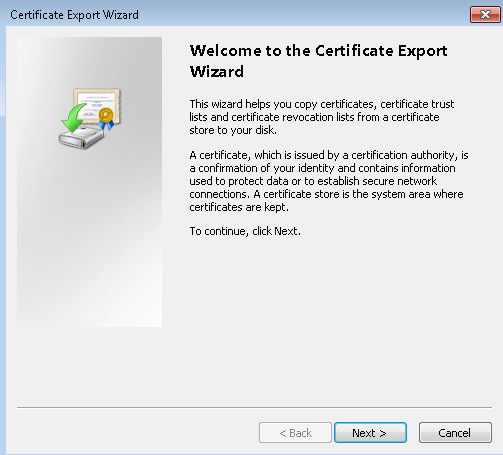
    b1

  2. In the Wizard, click Next, then select Yes, export the private key, and then click Next.

    b2

  3. On the Export File Format page, you can leave the defaults selected. Then click Next.

    b3

  4. On the Security page, you must protect the private key. If you select to use a password, make sure to record or remember the password that you set for this certificate. Then click Next.

    b4

  5. On the File to Export, Browse to the location to which you want to export the certificate. For File name, name the certificate file. Then click Next.

    b5

  6. Click Finish to export the certificate.

    b6

Part C – Install a client certificate

Each client that you want to connect to your virtual network by using a Point-to-Site connection must have a client certificate installed. This certificate is in addition to the required VPN configuration package. The following steps walk you through installing the client certificate manually.

  1. Locate and copy the .pfx file to the client computer. On the client computer, double-click the .pfx file to install. Leave the Store Location as Current User, then click Next.

    c1.png

  2. On the File to import page, don’t make any changes. Click Next.
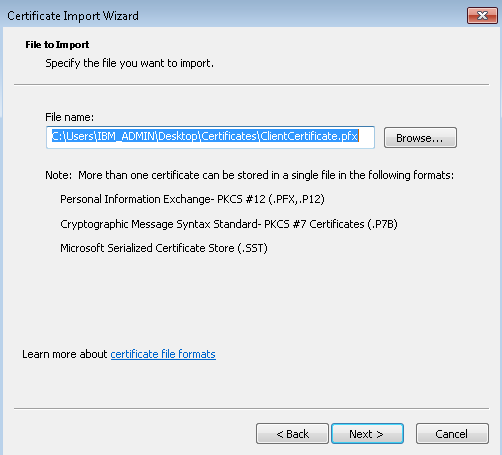
    c2

  3. On the Private key protection page, input the password for the certificate if you used one, or verify that the security principal that is installing the certificate is correct, then click Next.

    c3

  4. On the Certificate Store page, leave the default location, and then click Next.

    c4

  5. Click Finish. On the Security Warning for the certificate installation, click Yes. The certificate is now successfully imported.

    c5.png

PART 5 – Add The Client Address Pool

1. Once the virtual network gateway has been created, navigate to the Settings section of the virtual network gateway blade. In the Settings section, click Point-to-site configuration to open the Configuration blade.

2. Address pool is the pool of IP addresses from which clients that connect will receive an IP address. Add the address pool, and then click Save.
Here I am using 125.16.167.155/32 as my Address Pool, which is the public IP address of my laptop / network

15

PART 6 – Upload the Root certificate .cer file

After the gateway has been created, you can upload the .cer file for a trusted root certificate to Azure. You can upload files for up to 20 root certificates. You do not upload the private key for the root certificate to Azure. Once the .cer file is uploaded, Azure uses it to authenticate clients that connect to the virtual network.

  1. Navigate to the Point-to-site configuration blade. You will add the .cer files in the Root certificate section of this blade.
  2. Make sure that you exported the root certificate as a Base-64 encoded X.509 (.cer) file. You need to export it in this format so that you can open the certificate with text editor.
    (Best way to do this is to create a copy of the root certificate to a temp location and change the file type to .txt, so you can easily open the file with notepad)

    u2

  3. Open the certificate with a text editor, such as Notepad. Copy only the following section:

    u3.png

  4. Paste the certificate data into the Public Certificate Data section of the portal. Put the name of the certificate in the Name space, and then click Save. You can add up to 20 trusted root certificates.
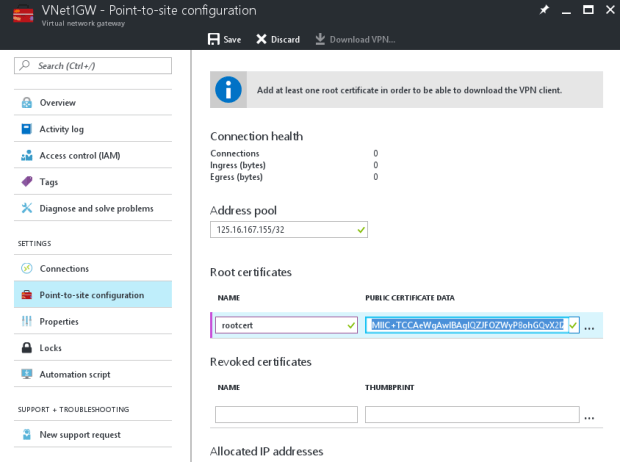
    16

PART 7 – Download and install the VPN client configuration package

Clients connecting to Azure using P2S must have both a client certificate, and a VPN client configuration package installed. VPN client configuration packages are available for Windows clients.
The VPN client package contains information to configure the VPN client software that is built into Windows. The configuration is specific to the VPN that you want to connect to. The package does not install additional software.

  1. On the Point-to-site configuration blade, click Download VPN client to open the Download VPN client blade.
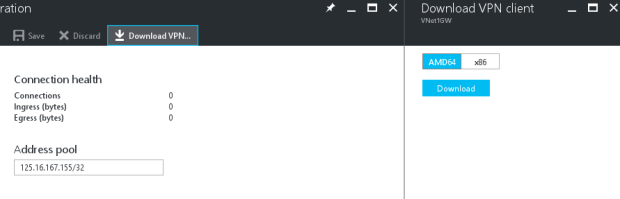
    17

  2. Select the correct package for your client, then click Download. For 64-bit clients, select AMD64. For 32-bit clients, select x86.
  3. Install the package on the client computer. If you get a SmartScreen popup, click More info, then Run anyway in order to install the package.
    Click on Close, if any antivirus pops-up. Then click on Yes, to continue the installation of VPN Client.

    d1

    d2

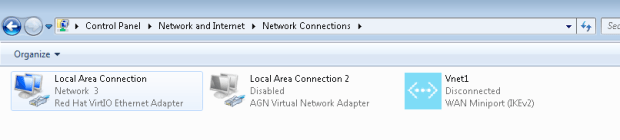
  4. On the client computer, navigate to Network Settings and click VPN. You will see the connection listed. It will show the name of the virtual network that it will connect to and looks similar to this example:
    d3

PART 8 – Connect To Azure

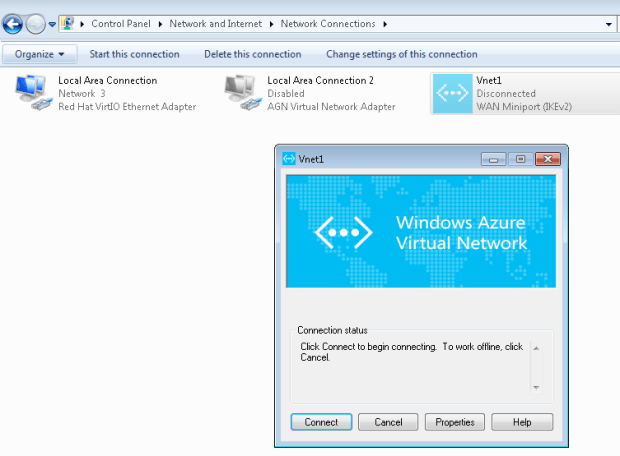
  1. To connect to your VNet, on the client computer, navigate to VPN connections and locate the VPN connection that you created. It is named the same name as your virtual network. Click Connect. A pop-up message may appear that refers to using the certificate. If this happens, click Continue to use elevated privileges.

    81.png

  2. On the Connection status page, click Connect to start the connection. If you see a Select Certificate screen, verify that the client certificate showing is the one that you want to use to connect. If it is not, use the drop-down arrow to select the correct certificate, and then click OK.
    82.png

    83.png

    84

  3. Your connection should now be established.

    85

PART 9 – Verify your connection

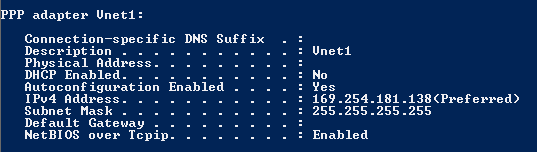
  1. To verify that your VPN connection is active, open an elevated command prompt, and run ipconfig/all.
  2. View the results. Notice that the IP address you received is one of the addresses within the Point-to-Site VPN Client Address Pool that you specified in your configuration. The results should be something similar to this:
    91


Powershell – Generate Azure Inventory

As with any managed services or infrastructure services projects, maintaining the server inventory is very crucial. The server-inventory-file provides a one-stop checklist, that you can refer while you are on priority 1 bridge calls.

With a traditional data center, it is easy to maintain server/infra inventory on an excel sheet. But it is not the same as the cloud because the infrastructure is so dynamic.

The only solution to this problem is Automation. I have written a PowerShell script just to do that.

The script produces a CSV file for individual services inside individual subscription’s folder.

DESCRIPTION:

This script will pull the infrastructure details of the Azure subscriptions. Details will be stored under the folder “c:\AzureInventory”. If you have multiple subscriptions, a separate folder will be created for individual subscription. CSV files will be created for individual services (Virtual Machines, NSG rules, Storage Account, Virtual Networks, Azure Load Balancers) inside the subscription’s directory

Below is the link to the script:

https://gallery.technet.microsoft.com/scriptcenter/Azure-Inventory-using-3db0f658?redir=0

Below are the links to:

AWS IaaS Inventory

Azure PaaS Inventory

Click here to download my PowerShell scripts for Free !!

Powershell – Truth about default formatting

Have you ever ran a powershell cmdlet and stare at the output, and ever wondered, what makes Powershell display the results in such a way? Is there any hidden configuration that guides the powershell engine to display results in a specific format for one cmdlet and in a different format for another cmdlet??

Read along. This blog will answer your curiosity !


Example: Below is the output of Get-service

get-service


Below is the output of Get-Process

get-process


The answer is Yes. The Powershell Engine is indeed guided by a configuration file that tells powershell on how to display the results. Or we call it as the “Default rules for Formatting” (not an official name :))

You will find the configuration files in the Powershell Installation Folder. Use the “$pshome” variable to find out the Powershell Installation Folder.

PS E:\Work\Powershell\scripts> $pshome
C:\Windows\System32\WindowsPowerShell\v1.0

Change the directory to the Powershell Installation directory and you must be able to find a file named “DotNetTypes.format.ps1xml”.

pshome

Please be cautious, not to edit the file. As it will break the signature and the PowerShell will not be able to use it anymore.

If you want to find out the default rules that are applied, then simply open the file and search for the cmdlet.

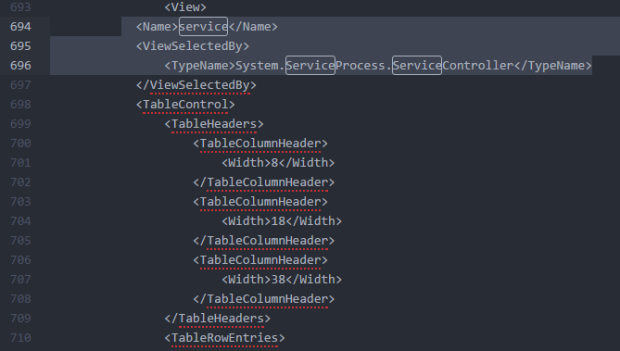
Example: If I want to know the default rules for the “Get-Service” cmdlet, I search the file for the keyword “service”. Note that the keyword “Service” should be enclosed within the “Name” tags. That is the correct one. As per the below image.

dotnettypes


You can double confirm if it is the correct branch, using the “<TypeName>” tag. This value should equate to the TypeName when you do a Get-Member of that cmdlet.

Example: “System.ServiceProcess.ServiceController” for Get-Service

Now what you are looking in the file are set of directions that the Powershell Engine follows. If you can see in the preceding lines, we can see a <TableControl> tag, which says, that the output should be in the form of table. Next few lines specifies the attributes of the table, such as Width and Height.


When you run Get-Service, here’s what happens:

  1. The cmdlet places objects of the type System.ServiceProcess.ServiceController into the pipeline.
  2. At the end of the pipeline is an invisible cmdlet called Out-Default. It is always there, and it’s job is to pick up what ever objects are in the pipeline after all the commands have run.
  3. Out-Default passes the objects to Out-Host, because the PowerShell console is designed to use the screen (called the host) as it’s default form of output.
  4. Most of the Out- cmdlets are incapable of working with normal objects. Instead, they are designed to work with special formatting instructions. So when Out-Host sees that it has been handed normal objects, it passes them to the formatting system.
  5. The formatting system looks at the type of the object and follow an internal set of formatting rules. It uses those rules to produce formatting instructions, which are passed back to Out-Host.
  6. Once Out-Host sees that it has formatting instructions, it follows those instructions  to construct the onscreen display.

So when you run the below cmdlet,

 Get-Process | Out-File process.txt

The out-File will see the normal objects. It will pass them to the formatting system, which will create formatting instructions and then passes back them to the Out-File. The Out-File then constructs the file based on those formatting instructions.

Below are the formatting rules:

  • First Rule: The System looks to see if the type of object it is dealing with has a predefined view. That is what you saw in the DotNetTypes.format.ps1xml.  There are other .format.ps1xml files installed with Powershell, and they are loaded when the powershell starts. You can create your own predefined views as well.


  • Second Rule: If the system is not able to find a predefined view, then it will look to see if anyone has declared a “default display property set” for that type of object. You can find that in a configuration file called- “Types.ps1xml” (under the Powershell Home directory)


defaultpropertyset

Go back to Powershell and Run:

Get-WmiObject win32_operatingsystem

get-wmiobject

I guess, now you know from where these entries came from. The properties you see are present because they are listed as defaults in the Types.ps1xml. If the formatting system finds a “default display property set”, it will use those set of properties.


  • Third Rule: It is about what kind of output to create. If the formatting system will display four or fewer properties, it will use a table. If there are five or more properties, then it will display the results as a list. This is why the Win32_OperatingSystem object was not displayed as a table, as it contained six properties, triggering a list. The theory is that more than 4 properties might not fit into a table, without truncating information.

Azure – Unable to ping Azure Virtual Machine from outside Azure

You buy a new Azure subscription, spin up an Azure Virtual Machine. Now you want to test if it is working or not. So, you pull up the infamous Command Prompt (or powershell) and Ping the VIP (Virtual/Public IP) of your Azure Virtual Machine. Wola!! The ping fails with 100% loss. But you can see that the Azure Portal shows that your virtual machine is up and running. To double check, you even RDP to your VM and it is all good. This is one of the many situations where the Azure new comers get confused. Let me break down this for you:-

The explanation for this behaviour is that the good old, Windows Ping.exe uses ICMP protocol to communicate. But the Azure Load Balancer does not support ICMP protocol when a connection is being made from external source to Azure. This means, your local computer will not be able to “Ping” (probing using Ping.exe) the Azure virtual Machines. However Azure Load Balancer allows ICMP protocol inside the azure (internally). This means, two Azure virtual machines are able to talk to each other.

The solution is to ping the port of your Virtual Machine.

Example: Ping xx.xx.xx.xx:1234

Since Ping.exe does not support probing the port, we have to use the other tools like PSPing, TCPPing etc, to achieve this.

This explains most of it. I am going to demonstrate whatever I just explained.

Below is the details of my virtual machine:

VM Details

When I ping the VIP – 13.76.247.67, using the default Ping.exe. You can observe that we end up having 100% packet loss.

packet_loss

This behaviour is because the Azure Load Balancer does not allow ICMP communication between Azure and the external source. And Microsoft’s Ping.exe uses ICMP protocol.

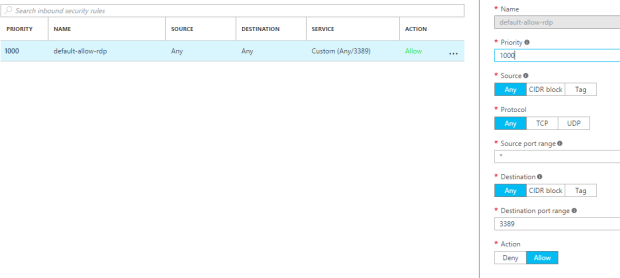
The solution is to use PSPing (among many other options), and ping the port of the Virtual Machine. Please note that you have to add relevant entry in the NSG (Network Security Group) to allow incoming traffic to your Virtual Machine.

Since this is just a Demo, I have allowed all the traffic to my Virtual Machine via the port 3389. You have to use appropriate NSG and ACLs to your Virtual Machine and Subnet, in your production environment. 

NSG_Allow_All

PSPing.exe comes with a bundle – PSTools. This toolset can be downloaded here.

Copy PsPing onto your executable path. Typing “psping” displays its usage syntax.

psping_syntax

Note: If you are using the PSPing tool for the first time, you may have to agree to the terms and conditions before using it.

Since I have my port – 3389 opened for all incoming traffic. I will go ahead and use the PSPing tool to ping the port from my local computer. And as you can see it works like a charm !!

ping_success

Finally, note that you can ping only to the port for which you have enabled the incoming traffic. Since I have not enabled port 80, I expect the packets to be dropped.

packet_loss_wrong_port

Powershell – Importance of the position of “Format-” in a pipeline

We have all used the Format-Table, Format-List, Format-Wide cmdlets to make our output more attractive. We know the importance of the Format- cmdlets now. But are we aware of the importance of the position of Format- cmdlets in the pipeline??

Have a look into the below three cmdlet examples:

Get-Process | Format-Table

get-process


Get-Process | Get-Member


get-process

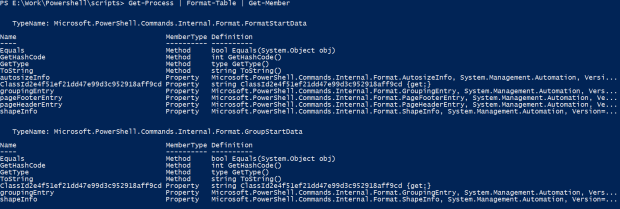
Get-Process | Format-Table | Get-Member

get-member

When we do a Get-Member, why are we getting “Microsoft.PowerShell.Commands.Internal.Format.FormatStartData” or “Microsoft.PowerShell.Commands.Internal.Format.GroupStartData” instead of  “System.Diagnostics.Process”, with just adding “Format-Table” in the pipeline.

The reason is that the Format-Table cmdlet does not output process objects. It consumes the process objects that you piped in and it outputs the formatting instructions – which is what the Get-Member sees and reports on.

Now try the below cmdlet:

Get-Service | select name, displayname, status | Format-Table | ConvertTo-Html | Out-File services.html

Open the services.html file with your favorite browser and you will be surprised to see the contents of that file, since it does not contain any of the service objects (which you were expecting). This is because you did not pipe the service objects to the ConvertTo-Html cmdlet, instead you have piped the formatting instructions.

This is the reason why the “Format-” cmdlets have to be the last thing on the pipeline.


One Object At A Time

We have to avoid putting multiple types of objects into the pipeline. This is because the pipeline is designed to handle only one type of objects.

Enter the cmdlets as below and run them, you will understand what I just said:

Get-Process; Get-Service

The semicolon allows me to put two cmdlets into the single command line, without having to pipe the output of the first cmdlet to the second one. In other words, both the cmdlets will run independently, however they will put the output to the same pipeline.

process-service


As you can see in the figure above, the output starts fine, displaying process objects. But the output breaks when displaying the service objects. Rather than producing a table for the service objects, PowerShell reverts to a list.

The  formatting system looks at the first object in the pipeline and uses the type of that object to determine what formatting to produce. If the pipeline contains two or more kinds of objects, the output will not always be complete or useful.

Azure – High level discussion of Azure Storage Architecture

Windows Azure Storage is a cloud solution that provides customers to store seamlessly limitless amount of data for a any duration of time. It has been in production since November 2008. It is used in storing application data, Live Streaming, social networking search, gaming and music content, etc.,

Once you have your data stored in Azure storage, You can access your data any time and from anywhere. And you only pay for what you use and store. Currently we have thousands of customers who are already using Azure Storage Services.

Visit the Azure Portal to create your free subscription and try out Azure Storage. Also, check out the Microsoft article for a jump start and pre-requisites required to use the Azure Storage.

Why use Azure Storage?

Disaster Recovery: Azure Storage stores your data miles apart (minimum 400 miles) in different data centres. This provides a strong guard against natural calamities like earthquakes, tornadoes etc., Replication options like – LRS, ZRS, GRS, RA-GRS are provided, which can be chosen as per the business needs.

Multi Tenancy: As with other services, Azure storage uses the concept of shared tenancy. What this means is, to reduce the storage cost, depending on the varying work loads of the customer, data from multiple customers are served from the same storage infrastructure. This reduces the amount of storage space to be provisioned at a time than having each services run on their own dedicated hardware.

Global Name-space: For ease of use, Azure Storage implements a Global Namespace that allows the data to be stored and accessed in a consistent manner from any location in the world.

Global Partitioned Name-space:

Exabytes of data and beyond are stored in Azure Storage. Azure had to come up with a solution that allowed its clients to store and retrieve data without much of a hassle. To provide this capability, Azure leveraged DNS part of the storage name-space and break it down to three parts: Account Name, a Partition Name and an Object Name.

Syntax: http(s)://AccountName.<service>.core.windows.net/PartitionName/ObjectName

Account Name: This is the customer selected Storage Account Name (entered while creating the storage account– Azure portal or Azure Powershell). This Account Name is used to locate the primary storage cluster and the data centre where the requested data is stored. This primary location is where the preceding requests go to reach the data of that account.

Partition Name: This name locates the data once the request reaches the primary cluster. It is also used to scale out the access to data across the nodes depending on the traffic.

Object Name: This identifies the individual objects within that partition.

For Blobs, the full blob name is the PartitionName.

For Tables, each entity (row) in the table has a primary key that consists of two properties: the PartitionName and the ObjectName. This distinction allows applications using Tables to group rows into the same partition to perform atomic transactions across them.

For Queues, the queue name is the PartitionName and each message has an ObjectName to uniquely identify it within the queue.

Architectural Components:

Azure_Storage

Storage Stamp: This is a cluster of N racks of storage nodes. Each rack is built out as a separate fault domain with redundant networking and power. The goal is to keep the stamp around 70% utilized in terms of capacity, transitions and bandwidth. This is because ~20% is kept as a reserve for (a) disk short stroking to gain better seek timse and higher throughput by utilizing the outer tracks of the disks and (b) to continue providing storage capacity and availability in the presence of a rack failure within a stamp. When the storage stamp reaches 70% utilization, the location service migrates accounts to different stamps using Inter-Stamp replication.

Location Service: Manages all the storage stamps. Also responsible for managing the account name-spaces across all stamps. The LS itself is distributed across two geographical locations for its own disaster recovery.

Azure Storage provides storage from multiple locations. Each location is a data centre, which holds multiple storage stamp. To provision additional capacity, the LS has the ability to add new regions, new locations to regions and new stamps to locations. The LS can then allocate new storage accounts to those new stamps for customers as well as load balance (migrate) existing storage accounts from older stamps to new stamps.

As shown in the figure, When an application requests new Storage Account for storing data, it specifies the location affinity for the storage (Example: US North). The LS then chooses a storage stamp within that location as the primary stamp for the account. The LS then stores the account meta-data information in the chosen storage stamp, which tells the stamp to start taking traffic for the assigned account. The LS then updates the DNS to allow requests to now route from the name https://AccountName.service.core.windows.net/ to that storage stamp’s virtual IP (VIP, an IP address the storage stamp exposes for external traffic).

Three Layers within Storage Stamp:

Stream Layer: This layer stores the bits on disk and is in charge of distributing and replicating the data across many servers to keep data durable within a storage stamp. The stream layer can be thought of as a distributed file system layer within a stamp. It
understands files, called “streams”, how to store them, how to replicate them, etc., but it does not understand higher level object constructs or their semantics.

Partition Layer: The partition layer is built for (a) managing and understanding higher level data abstractions (Blob, Table, Queue), (b) providing a scalable object namespace, (c) providing transaction ordering and strong consistency for objects, (d) storing object data on top of the stream layer, and (e) caching object data to reduce disk I/O.
Front End Layer: The Front-End (FE) layer consists of a set of stateless servers that take incoming requests. Upon receiving a request, an FE looks up the AccountName, authenticates and authorizes the request, then routes the request to a partition server in the partition layer (based on the PartitionName). The system maintains a Partition Map that keeps track of the PartitionName ranges and which partition server is serving which PartitionNames. The FE servers cache the Partition Map and use it to determine which partition server to forward each request to. The FE servers also stream large objects directly from the stream layer and cache frequently accessed data for efficiency.

Two Replication Engines:

Intra-Stamp Replication (Stream Layer): This system provides synchronous replication and is focused on making sure all the data written into a stamp is kept durable within that stamp. It keeps enough replicas of the data across different nodes in different fault domains to keep data durable within the stamp in the face of disk, node, and rack failures. Intra-stamp replication is done completely by the stream layer and is on the critical path of the customer’s write requests. Once a transaction has been replicated successfully with intra-stamp replication, success can be returned back to the customer.

Inter-Stamp Replication (Partition Layer): This system provides asynchronous replication and is focused on replicating data across stamps. Inter-stamp replication is done in the background and is off the critical path of the customer’s request. This replication is at the object level, where either the whole object is replicated or recent delta changes are replicated for a given account. Inter-stamp replication is used for (a) keeping a copy of an account’s data in two locations for disaster recovery and (b) migrating an account’s data between stamps. Inter-stamp replication is configured for an account by the location service and performed by the partition layer.

Note: The above content has been summarized from a technical paper titled: “Windows Azure Storage: A Highly Available Cloud Storage Service with Strong Consistency” released by Microsoft.
You can download the PDF here.

Azure – Setting up Azure Subscription using PowerShell

The very fact that you are here reading this blog is because you have selected to manage your Azure service using Powreshell. Welcome to the team!!

I assume that you are already have a valid Azure subscription. Powershell 3.0 or higher and have the Windows Azure Powershell modules installed. If you do not have the Azure Powershell modules, you can download the Azure PowerShell module here.

Authenticating with a Certificate

You have to download the .publishsettings file from the Microsoft Azure . You can use the below command:

Get-AzurePublishSettingsFile

This will automatically ask you to select your favourite browser, so you can login to Microsoft Azure website.

get-publishfile

Now login with your credentials, that you always do with the Azure Portal

login

The file that we downloaded is very important and we have to handle it with a lot of care. Any one who can get their hands on this file, will have complete access to resources under that subscription. Microsoft imposes a limit on the total number of management certificates that can be associated with a subscription at a time. The number is 100 at the time of writing this blog. Each time you run the Get-AzurePublishSettingsFile cmdlet, Azure generates a new management certificate.

Importing the .pubishsettings file

The next step is to import the .publishsettings file that we just downloaded. I have saved in “E:\Work\Powershell\scripts”, so I am going to run the Import-AzurePublishSettingsFile cmdlet with the complete file path to the settings file.

Import-AzurePublishSettingsFile "E:\Work\Powershell\scripts\Pay-As-You-Go-9-9-2016-credentials.publishsettings"

import-settingfile

As you can see that the cmdlet outputs the subscription information, telling you that the settings are successfully imported.

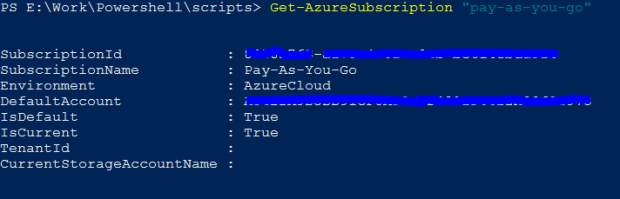
To double confirm, you can run the Get-AzureSubscription cmdlet.

get-subscription

This cmdlet also tells you, if this subscription is your “Current” / “Default” subscription.

If you have multiple subscriptions, use the Set-AzureSubscription cmdlet to set any azure subscription as “Current” or “Default”.

Also, use the Select-AzureSubscription if you want to switch between subscriptions while working with Powershell.